Esta complemento fue eliminada de Tienda de complementos de Firefox el 2024-09-25
Context Search
Firefox add-on to search selected text in a web page using your favorite search engines organized in folders.
Features
- Organize your search engines in (sub-)folders
- Access search engines from the Context Menu
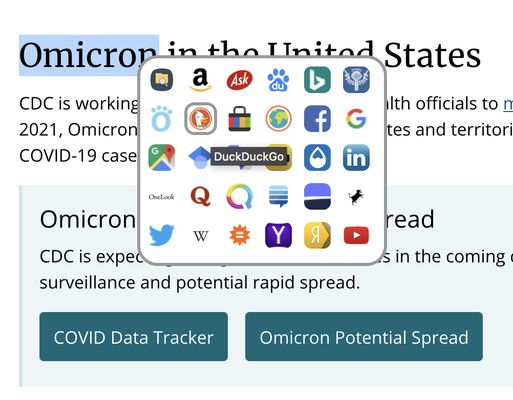
- Access search engines from an Icons Grid
- Compatible with search engines using either GET or POST requests
- Reverse-image search
- Site search
- Carry out multiple searches at once using multisearch
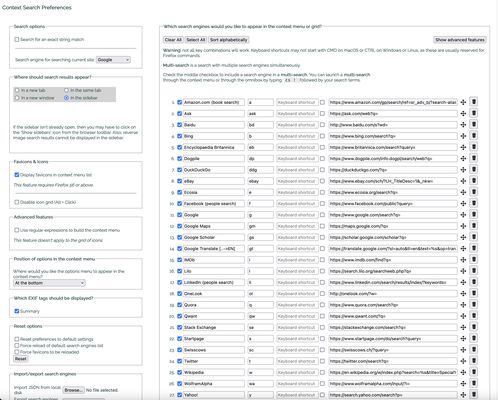
- Manage your search engines from the extension's Options page
- Many ways to easily add a new search engine
- Support for search engines using OpenSearch description format
- Simply add a search engine from mycroftproject.com
- Use custom favicons for your search engines
- Use custom prompts to question a selection of AI chatbots
- Perform an AI Search using the command window ('Ctrl+0' or 'Cmd+0')
- Carry out searches from the Omnibox, i.e. url address bar
- Assign keyboard shortcuts to your search engines
- Export/Import your list of search engines as a safe backup
- Download videos from YouTube or Vimeo by right-clicking on a video thumbnail (requires some manual configuration as detailed below in the 'Advanced features' section)
Issues
Please report issues you encounter using Context Search here:
https://github.com/odebroqueville/contextSearch/issues
Permissions
Notifications, Downloads, History and Bookmarks are now optional permissions. They are disabled by default. If you'd like to show notifications and/or save your list of search engines to your local disk, or search your history or bookmarks from the Omnibox, then open the extensions manager, select Context Search and under the Permissions tab enable the appropriate permissions.
To open search results in a new private window, in the extensions manager, allow Context Search to "Run in Private Windows".
How does it work
- Select some text on a webpage
- Right click (or Alt-click) on a selection
- A context menu (or a grid of icons) appears, displaying the list of search engines chosen in the extension's preferences
- Click on the search engine with which you’d like to search for the selected text
The search results will appear as defined in the extension's preferences page.
Managing search engines
To manage your favorite search engines, you can go to the preferences page of Context Search. You can reach this page by opening the extensions page (Addon Manager) where all your add-ons are listed and then clicking on the "Preferences" button.
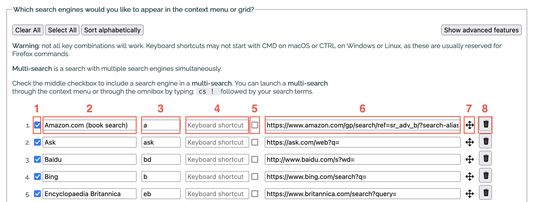
Please refer to the 4th screenshot above.
- The checkbox at the start of a line determines whether the search engine should appear in the context menu.
- The next item on the line contains the name of the search engine and is followed by a keyword.
- This keyword is used in the url address bar (or omnibox) after the word “cs “ and before the search terms (e.g. to search for linux using the search engine Wikipedia, you would type: ‘cs w linux’, where w is the keyword assigned to Wikipedia).
- Next, you can assign a keyboard shortcut to a search engine to perform a quick search. Please note that not all key combinations will work as some may be reserved by the browser or your system.
- The second checkbox specifies whether you’d like to use the search engine in a “multi-search”. A “multi-search” is a search performed using multiple search engines and can be selected in the context menu of in the grid of icons.
- The checkbox is followed by the search query string. This is the generic url you would use to perform a search. Search query strings may contain the parameters %s or {searchTerms} where you'd like your search terms, i.e. the selected text, to appear.
- Click on and drag the move icon to the left of the trash icon to move each search engine up or down in the list.
- Click on the trash icon to remove a search engine from the list.
The 'Reset' button will re-load the default list of search engines and their associated favicons.
You can also import a JSON file containing your own list of search engines. It is strongly recommended to export your customized list of search engines as a backup in case anything goes wrong.
How to add a search engine to your custom list of search engines
Video demo: https://youtu.be/_kV7JCgGQLk
- visit mycroftproject.com and click on the Context Search icon that appears before the textual link of a listed search engine
- use the page action (i.e. Context Search icon in the url address bar) to add a search engine if the website supports open search
- add a search engine manually via the Options page (you can test the query string before adding the search engine)
- to add a search engine that uses a submit form via an HTTP POST request, double click in the website's search text box, then give your search engine a name
How to add an AI prompt to your custom list of search engines
Prior to using an AI provider, ensure that you have logged in to their website. At the bottom of the Options page, select the tab to 'Add a new AI prompt'. Chose the AI provider you'd like to use, add a name for your prompt and enter your prompt by inserting %s where you'd like your text selection to appear (e.g. 'Comprehensively explain the following for a 10 year old: %s').
In most cases, after selecting text on a web page and selecting your prompt in the context menu, a new tab will open with the relevant AI engine. The AI prompt will be pasted in the search box and automatically submitted to the AI engine, except for Poe so that users can choose their preferred large language model. The search results should then appear.
How to add a separator (horizontal line) in the context menu
At the bottom of the Options page, simply click on the "Add separator" button. This will add a separator to the bottom of your search engines list. Then, use the arrow handle to the right of the horizontal line to move the separator to the position where you would like it to be. The separator should appear in the context menu.
How to add a custom favicon for a search engine
From the Options page, click on the favicon right before the search engine's name. A popup window will open displaying the current favicon and the associated base64 string. Either drag & drop a new png image onto the existing one or paste the base64 string of your new image. Then click on the 'Save' button for your changes to take effect. The popup will automatically close after you click on the 'Save' button.
How to perform an AI search using the command window
Prior to using this feature, ensure that you have logged in to the website(s) of the AI engine(s) that you'd like to use. 'CTRL+ALT+0' (Windows) or 'CMD+ALT+0' (Mac) now opens a command window from which to carry out an AI search. Start by typing the keyword corresponding to the AI engine that you'd like to use followed by a 'Space' character. The current list of valid keywords is:
- chatgpt
- claude
- google (for Google AI Studio where different models are available)
- perplexity
- poe (where you can choose amongst different LL models, namely Llama 3.1)
If the AI engine is recognized, then it will automatically be styled as a tag. You can then continue typing your prompt completed by 'Enter'. The command window should then close and the search results be displayed. Unless you are using poe, then an additional step is required: select the LLM and submit the prompt.
How to perform a search in the omnibox
In the omnibox (or url address bar), type 'cs ' (without the quotes, and where cs stands for Context Search) followed by the keyword you have chosen for your seaarch engine in the extension's preferences, e.g. 'w ' (again without quotes) for Wikipedia, followed by your search term(s). The dot ('.'), the exclamation mark ('!'), '!h' or 'history' and '!b' or 'bookmarks' are reserved keywords.
Here are some examples:
cs w atom
will search for the word 'atom' in Wikipedia.
cs .
will open the Options page
cs ! cold fusion
will perform a multi-search for the search terms 'cold fusion'
cs !h or cs history
will display all your history
cs !b Mozilla or cs bookmarks Mozilla
will display all bookmarks that include the term Mozilla
cs !b recent or cs bookmarks recent
will display your 10 most recent bookmarks
Advanced features for macOS users
To download videos from YouTube or Vimeo, Homebrew, yt-dlp, ffmpeg and Python are required. You'll also need to disable video previews from your YouTube settings for downloads to work.
If you don't already have Homebrew installed, then you can install it by typing the following command in your terminal:
/bin/bash -c "$(curl -fsSL https://raw.githubusercontent.com/Homebrew/install/HEAD/install.sh)"
To install yt-dlp, ffmpeg and Python, type:
brew install yt-dlp ffmpeg python
Two additional files are required: yt_dlp_host.json and yt_dlp_host.py. The files can both be downloaded from the [Context Search GitHub repo](https://github.com/odebroqueville/contextSearch).
Place the yt_dlp_host.py file in a folder of your choosing where it won't be deleted. Next, place the yt_dlp_host.json file in the folder:
/Library/Application Support/Mozilla/NativeMessagingHosts/
Finally, edit the yt_dlp_host.json file and modify the 'path' property so that it points to the location of the yt_dlp_host.py file:
"path": "/path/to/yt_dlp_host.py",
The videos will be downloaded in the mp4 format using the h.264 or h.265 video codec in 720p at least with the highest quality audio and video, and saved to the '/Movies/Video Downloads' directory. The format of the video and the destination may be changed by editing the following line in the ytp_dlp_host.py file:
result = subprocess.run(['/usr/local/bin/yt-dlp', '--ffmpeg-location', '/usr/local/bin/ffmpeg', '-f', "(bv*[vcodec='^((he|a)vc|h26[45])'][height>=720]+ba[ext=m4a]) / (bv*+ba/b)", '-P', '~/Movies/Video Downloads', url],
capture_output=True,
text=True,
check=True)
Formatting parameters available for yt-dlp may be found on the [yt-dlp GitHub repo](https://github.com/yt-dlp/yt-dlp?tab=readme-ov-file#format-selection)
Please refer to the [MDN web documentation](https://developer.mozilla.org/en-US/docs/Mozilla/Add-ons/WebExtensions/Native_messaging#windows_setup) for instructions to configure native messaging for Windows.
N.B. Please note that the context menu option to download the videos will only work when right-clicking on video thumbnails.
Advanced features for Windows users
Install Python, ffmpeg and yt-dlp
Follow the instructions [here](https://chatgpt.com/share/56f68eed-b6c4-4454-9680-c82030e3737d)
Download the yt_dlp_host files from the [Context Search repository on GitHub](https://github.com/odebroqueville/contextSearch)
Save the 3 files to a folder of your choosing
Edit the yt_dlp_host.json file
Modify the 'path' property so that it points to the location of the yt_dlp_host.py file:
"path": "/path/to/yt_dlp_host.py",
Edit the yt_dlp_host.bat file
Modify the path so that it points to the location of the yt_dlp_host.py file.
Edit the yt_dlp_host.py file
Replace the line starting with result=subprocess.run() with:
result = subprocess.run(['yt-dlp', '--ffmpeg-location', '/path/to/ffmpeg', '-f', "(bv*[vcodec~='^((he|a)vc|h26[45])'][height>=720]+ba[ext=m4a]) / (bv*+ba/b)", '-P', '/path/to/Video Downloads', url],
capture_output=True,
text=True,
check=True)
where /path/to/ffmpeg is the path to your ffmpeg binary and
where /path/to/Video Downloads is the path to the folder where you'd like to save your video downloads.
Add Registry entries
The browser finds the extension based on registry keys which are located in a specific location. One of the two registry entries should be created for the messaging to work:
HKEY_CURRENT_USER\Software\Mozilla\NativeMessagingHosts\yt_dlp_host
HKEY_LOCAL_MACHINE\Software\Mozilla\NativeMessagingHosts\yt_dlp_host
The default value for the key should be the path to the application manifest (yt_dlp_host.json). Instructions to add a new registry key are provided [here](https://chatgpt.com/share/bbd2323b-9682-45b6-b22d-2ca3e53a5c16).
Please refer to the [MDN web documentation](https://developer.mozilla.org/en-US/docs/Mozilla/Add-ons/WebExtensions/Native_messaging#windows_setup) for instructions to configure native messaging for Windows.
Reminder
- for YouTube video downloads to work, you need to disable video previews in YouTube settings;
- nativeMessaging permission needs to be enabled in the extension's permission section.
The main structure of a JSON file containing the search engines
{
  "id": {
    "index": 0,
    "name": "search engine's name",
    "keyword": "keyword to be used in an omnibox search",
    "keyboardShortcut": "keyboard shortcut assigned to the search engine",
    "multitab": "takes the value true or false depending on whether this search engine should be included in a multi-search or not",
    "url": "search engine query string (without the search terms)",
    "show": "takes the value true if the search engine is to be shown in the context menu or false if not",
    "base64": "a base 64 string representation of the search engine's favicon"
  }
}
It is not required to provide the base 64 string representation of any search engine's favicon. This string will automatically be loaded for you.
Special thanks to the following contributors
- Carl Scheller for implementing the drag & drop feature to move search engines in the Options page
- Geoffrey De Belie for the Dutch translation
- Krzysztof Galazka for the Polish translation
- Sergio Tombesi for the Italian and Spanish translations
- Fushan Wen for the Chinese translation
- Sveinn í Felli for the Icelandic translation
Code made by others used in this extension
Chrome-Stats no es propietario de este complemento de Firefox. Utilice esta información a continuación para ponerse en contacto con el desarrollador de complemento de Firefox.


 English
 Español
 Français
 Português
 日本語
日本語 简体中文
简体中文 한국인
한국인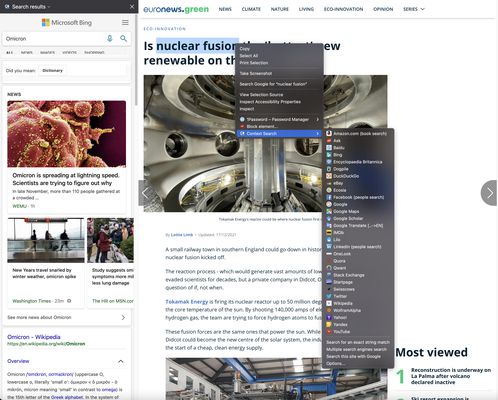





 491 3.88
  (24)
(24)


