


CBM Manager
 English
 Español
 Français
 Português
 日本語
日本語 简体中文
简体中文 한국인
한국인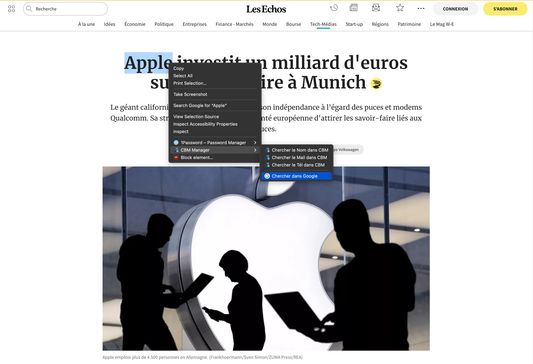
특징 및 기능
CBM Manager
Firefox add-on to search for selected text (e.g. name, email address or phone number) in a web page using CBM Manager or your favorite search engines. A registered account is required to use CBM Manager.
Permissions
Notifications, Downloads, History and Bookmarks are now optional permissions. They are disabled by default. If you'd like to show notifications and/or save your list of search engines to your local disk, or search your history or bookmarks from the Omnibox, then open the extensions manager, select Context Search and, under the Permissions tab, enable the appropriate permissions.
To open search results in a new private window, in the extensions manager, allow Context Search to "Run in Private Windows".
How does it work
- Select some text on a webpage
- Right click (or Alt-click) on a selection
- A context menu (or a grid of icons) appears, displaying the list of search engines chosen in the extension's preferences
- Click on the search engine with which you’d like to search for the selected text
Managing search engines
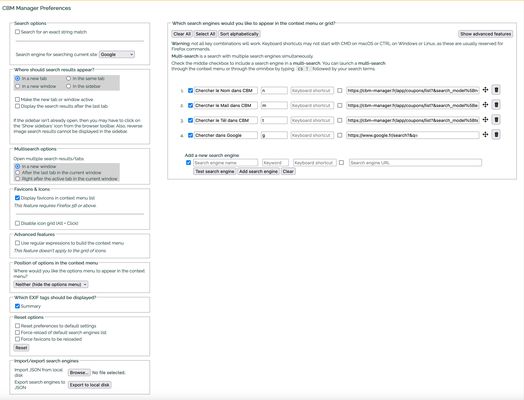
To manage your favorite search engines, you can go to the preferences page of Context Search. You can reach this page by opening the extensions page (Addon Manager) where all your add-ons are listed and then clicking on the "Preferences" button.
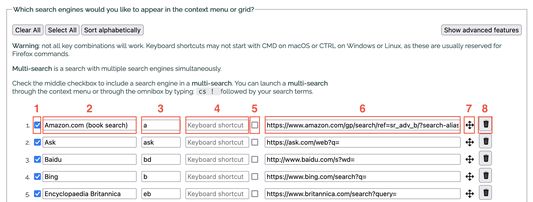
Please refer to the 4th screenshot above.
- The checkbox at the start of a line determines whether the search engine should appear in the context menu.
- The next item on the line contains the name of the search engine and is followed by a keyword.
- This keyword is used in the url address bar (or omnibox) after the word “cs “ and before the search terms (e.g. to search for linux using the search engine Wikipedia, you would type: ‘cs w linux’, where w is the keyword assigned to Wikipedia).
- Next, you can assign a keyboard shortcut to a search engine to perform a quick search. Please note that not all key combinations will work as some may be reserved by the browser or your system.
- The second checkbox specifies whether you’d like to use the search engine in a “multi-search”. A “multi-search” is a search performed using multiple search engines and can be selected in the context menu of in the grid of icons.
- The checkbox is followed by the search query string. This is the generic url you would use to perform a search. Search query strings may contain the parameters %s or {searchTerms} where you'd like your search terms, i.e. the selected text, to appear.
- Click on and drag the move icon to the left of the trash icon to move each search engine up or down in the list.
- Click on the trash icon to remove a search engine from the list.
You can also import a JSON file containing your own list of search engines. It is strongly recommended to export your customized list of search engines as a backup in case anything goes wrong.
How to add a search engine to your custom list
- visit mycroftproject.com and click on the Context Search icon that appears before the textual link of a listed search engine
- use the page action (i.e. Context Search icon in the url address bar) to add a search engine if the website supports open search
- add a search engine manually via the Options page (you can test the query string before adding the search engine)
How to perform a search in the omnibox
In the omnibox (i.e. url address bar), type 'cbm ' (without the quotes) followed by the keyword you have chosen for your seaarch engine in the extension's preferences, e.g. 'w ' (again without quotes) for Wikipedia, followed by your search term(s). The dot ('.'), the exclamation mark ('!'), '!h' or 'history' and '!b' or 'bookmarks' are reserved keywords.
Here are some examples:
cbm w atom will search for the word 'atom' in Wikipedia.
cbm . will open the Options page
cbm ! cold fusion will perform a multi-search for the search terms 'cold fusion'
cbm !h or cbm history will display all your history
cbm !b Mozilla or cbm bookmarks Mozilla will display all bookmarks that include the term Mozilla
cbm !b recent or cbm bookmarks recent will display your 10 most recent bookmarks
Please note that history or bookmarks permissions need to be allowed for the above examples to work.
Advanced features
You can add a regular expression to each search engine. If the selected text matches the regex, then the search engine will appear in the context menu. As an example, imagine you had a search engine for booking.com and another for tripadvisor.com and you would like these search engines to appear in the context menu when a selection contains the word 'hotel'. Then, for those search engines, you'd enter the regex /hotel/. If you then make any other selection that doesn't contain the word "hotel" in it, those search engines won't appear in the context menu. There's a very useful website for building a regex: [https://regex101.com](https://regex101.com). Another example is, if you select an IP address, then you might want the search engine corresponding to whatismyipaddress.com to appear. The regex here is a little more complicated to establish, but Google can help: search Google for "regex for ip address".
The main structure of a JSON file containing the search engines
{
  "id": {
    "index": 0,
    "name": "search engine's name",
    "keyword": "keyword to be used in an omnibox search",
    "multitab": "takes the value true or false depending on whether this search engine should be included in a multi-search or not",
    "url": "search engine query string (without the search terms)",
    "show": "takes the value true if the search engine is to be shown in the context menu or false if not",
    "base64": "a base 64 string representation of the search engine's favicon"
  }
}
Here is an example of a JSON file containing 3 search engines:
{
  "bing": {
    "index": 0,
    "name": "Bing",
    "keyword": "b",
    "multitab": false,
    "url": "<a href="https://prod.outgoing.prod.webservices.mozgcp.net/v1/c740c1a9a6199f44153e133c2955f949766951f0abd483c0f9c8e566fb6c0d2c/https%3A//www.bing.com/search%3Fq=" rel="nofollow">https://www.bing.com/search?q=</a>",
    "show": true,
    "base64": ""
  },
  "google": {
    "index": 1,
    "name": "Google",
    "keyword": "g",
    "multitab": false,
    "url": "<a href="https://prod.outgoing.prod.webservices.mozgcp.net/v1/018669bd195775f3e18e1b41b6a03114a4600f03a093a1b91f2cc788bce01a9d/https%3A//www.google.com/search%3Fq=" rel="nofollow">https://www.google.com/search?q=</a>",
    "show": true,
    "base64": ""
  },
  "yahoo": {
    "index": 2,
    "name": "Yahoo!",
    "keyword": "y",
    "multitab": false,
    "url": "<a href="https://prod.outgoing.prod.webservices.mozgcp.net/v1/525c4f789ae1aa3528390ba4b88fb84346f71cc84f172cbd023d004d1fc7cca8/https%3A//search.yahoo.com/search%3Fp=" rel="nofollow">https://search.yahoo.com/search?p=</a>",
    "show": true,
    "base64": ""
  }
}
It is not required to provide the base 64 string representation of any search engine's favicon. This string will automatically be loaded for you.
Special thanks to the following contributors
- Carl Scheller for implementing the drag & drop feature to move search engines in the Options page
- Geoffrey De Belie for the Dutch translation
- Krzysztof Galazka for the Polish translation
- Sergio Tombesi for the Italian and Spanish translations
- Fushan Wen for the Chinese translation
- Sveinn í Felli for the Icelandic translation
- SortableJS v1.15.0 minified with many contributors, which can be found on GitHub here: https://github.com/SortableJS/Sortable/blob/1.15.0/Sortable.min.js
사용자 증가 및 다운로드 통계
- 제작자:
- Bluelephant
- 일일 사용자:
- 33 1
- 평점:
- 5.00 (4)

- 버전:
- 1.1.1 마지막 업데이트: 2023-05-20
- 버전 코드:
- 5569393
- 생성 날짜:
- 2023-03-05
- 위험:
- High risk impact Low risk likelihood
- 권한:
- 콘텐츠 스크립트 매칭:
- *
- *
- 크기:
- 780.26KB
- 이메일:
- ol*****@gmail.com
- URL:
- 웹사이트 ,개인정보 보호정책
- 전체 설명:
- 자세한 설명 보기
- 소스:
- Firefox 부가 기능 스토어
- 데이터 수집일:
- 2026-06-23
- 통계 및 순위 비교:
-
개발자에게 문의
사용자 리뷰

CBM Manager는 안전한가요?
위험 영향도
CBM Manager은(는) 브라우저와 데이터 보안에 영향을 줄 수 있는 일부 민감한 권한을 요구합니다. 설치 전에 주의하세요.
위험 영향도 분석 세부 정보
- Critical Allows access to all websites, posing a significant security risk as it can monitor and modify data from any visited site.
- High ****** *** ********* ** ******* *** ******* ******* ** ****** *** *** ******** ******
- High ******* ******* **** *** ****** ***** *** ***** ** ******* **** ********* ********* ** * *********** *****
- Low ****** ***** ** ******* ****** ********** **** ** ** ******** ******* ** **** ***** *************
위험 가능성
CBM Manager은(는) 꽤 좋은 평판을 얻었으며 아마도 신뢰할 수 있습니다.
위험 가능성 분석 세부 정보
- High This extension has low user count. Unpopular extensions may not be stable or safe.
- Low **** ********* *** ******* **** **** * ****** **** ***** ******** *** **** ****** ** ** ****** *** *****
- Low **** ********* *** ***** **** **** * ****** **** ***** ********** *** **** ****** ** ** ****** *** *****
- Good **** ********* *** **** **** *******

최고의 CBM Manager 대안
다음은 CBM Manager과(와) 유사한 Firefox add-on입니다:

 491 3.88
  (24)
(24)  4K 4.39 (266)
  57 4.40 (10)
  3K 4.70 (214)
  479 4.79 (73)
  13 1.00 (1)
  11 0.00 (0)
  15 0.00 (0)
  5 0.00 (0)
  367 4.78 (36)
  1 0.00 (0)